Showing posts with label Apps. Show all posts

Monday, November 19, 2012

How to set default App on Android?


Alright, so now we have installed multiple Internet browsers of our choice. How will we set the preference of which browser to launch to open links from, let’s say your mail box?
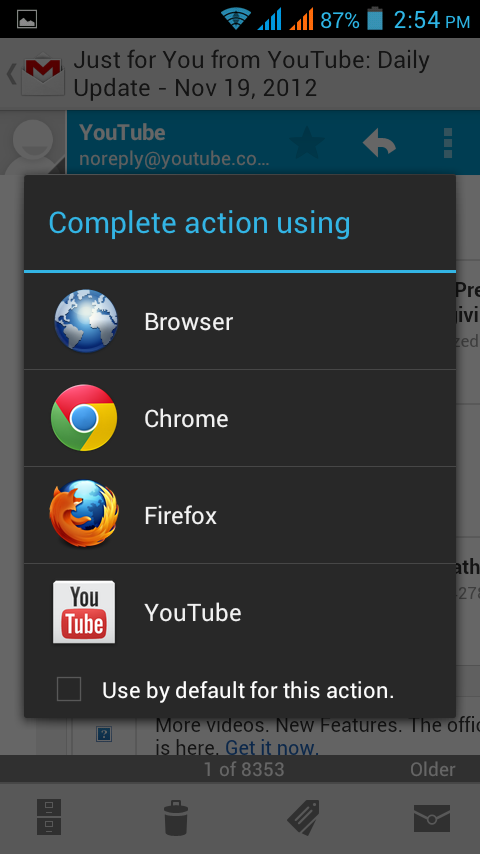

The answer is by setting a default application. Default apps settings in Android happen by default! Meaning, in case of web browsers, when you try to open a link from some application and if you have multiple browsers installed and if the default is not already set, you will be presented with the options screen as shown.

Observe the Use by default for this action checkbox. If you check this checkbox and then make a selection then that app will be set as default app for your current action! Isn’t that neat?

Alright, now that we have set the default app, how can we clear it so as we can set a new default by above way?

Okay so here we have a direct Option. Do this.
  1. Goto Manage apps screen
    • ICS - You can go directly from home page or from System settings
    • Gingerbread – Goto System settings->Applications->Mange applications.
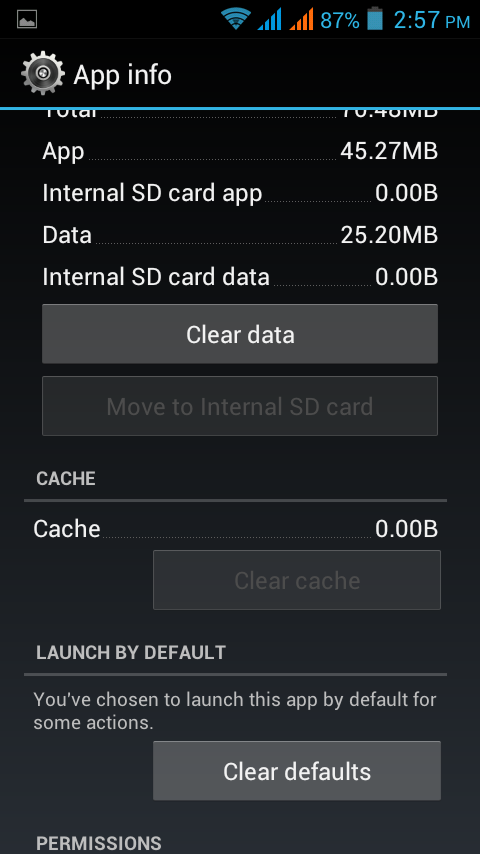
  2. Select the app that was set as default and you will be presented with App Info screen.
  3. Scroll down and go to the Launch By Default section to see a button called as Clear defaults. Just hit that and you are done!

How to install Apps on Andoid?


The essence of an Android phone apart from others is its ability to let us install apps from nearly half million (4 lakh+) applications.

So how do we go about installing apps?


Well there are multiple ways. If your devices come preloaded with Google Play then see instructions below. If they come with manufacturer specific app store then most likely it will function similar to Google Play and below instructions may still help.


Note: Using Google Play Store will require the Google account to set-up. Please see this article to assist you with it.
  1. Launch Google Play Store (most likely it is located in the apps menu)
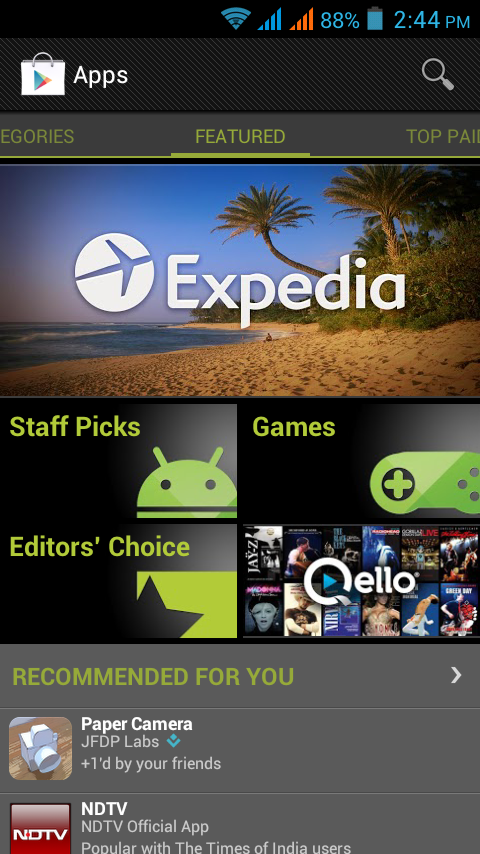
  2. You will see an interface similar to shown.
  3. You have options to Search apps and browse through various tabs which range from Featured to Top Paid to Top Free etc.
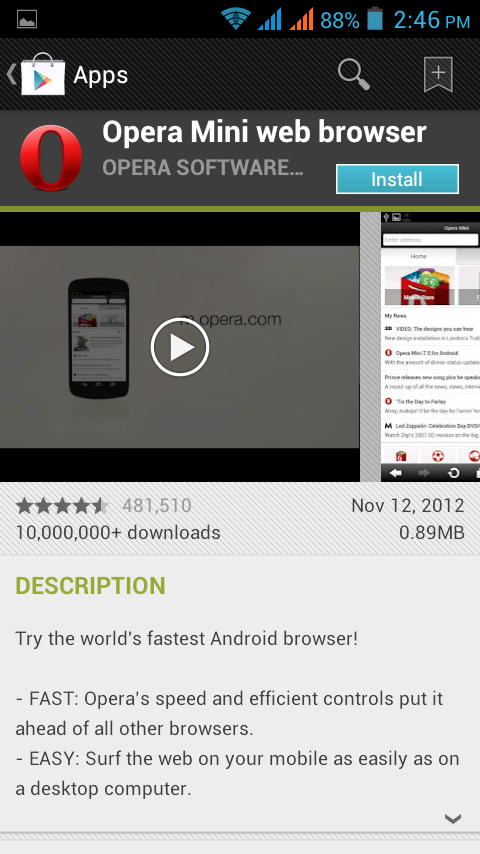
  4. Once you have made a choice, click on the Install button located on top left which will install that app. You can then locate the app from app menu similar to how you located Google Play store.

There is another option to install apps. If you can obtain the installable somehow you can directly run it by executing the appropriate file however to do so appropriately you may need to tweak your security settings.

You may need to allow non-market app installation by checking Systems Setting->Security->Unknown sources check box. However there is huge piece of advice here. Enabling this setting will open you to all kind of threats anyone can think off so please do it only if it’s absolutely necessary and disable as soon as possible.